
Introduction
Electronic mail is a method of exchanging digital messages between computer users; such messaging first entered substantial use in the 1960s and by the 1970s had taken the form now recognised as email. Email operates across computer networks, now primarily the Internet.
Some early email systems required the author and the recipient to both be online at the same time, in common with instant messaging. Today's email systems are based on a store-and-forward model. Email servers accept, forward, deliver, and store messages. Neither the users nor their computers are required to be online simultaneously; they need connect only briefly, typically to a mail server, for as long as it takes to send or receive messages.
Task
Setting up a Gmail account is easy. You will begin by creating a Google account, and during the quick signup process you will choose your Gmail account name. In this lesson, we'll show you how to set up your Google account for Gmail, add and edit contacts, and edit your mail settings.

Process
To create an account:
- Go to www.gmail.com.
- Click Create an account.

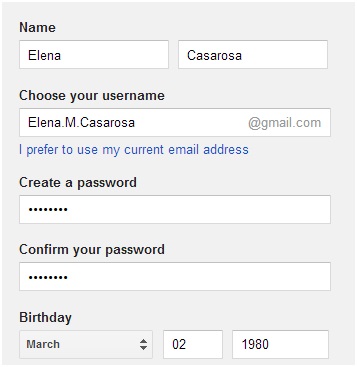
- The signup form will appear. Follow the directions and enter the required information, such as your name, birthdate, and gender.
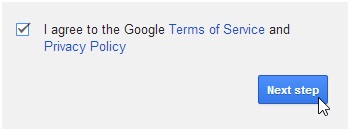
- Finally, review Google's Terms of Service and Privacy Policy, click the check box, then click Next step.
- The Create your profile page will appear. Click Add a photo if you want to add a photo to your Google+profile. If you don't want to set a profile photo at this time, click Next step.

- Your account will be created, and the Google welcome page will appear.

To send an email:
- In the left menu pane, click the Compose button.

- The compose window will appear in the lower-right corner of the page.

- You'll need to add one or more recipients to the To: field. There are two ways to do this:
- Type one or more email addresses, separated by commas.

- Click To to select recipients from your contacts, then click Select.

- Type one or more email addresses, separated by commas.
- Type a Subject for the message.
- In the Body field, type your message. When you're done, click Send.

If the person you are emailing is already one of your contacts, you can start typing that person's first name, last name, or email address, and Gmail will display the contact below the To: field. You can then press the Enter key to add the person to the To field.

Adding attachments
An attachment is simply a file (such as an image or document) that is sent along with your email. For example, if you are applying for a job, you might send your resume as an attachment, with the body of the email being thecover letter. It's a good idea to include a message in the body of your email explaining what the attachment is, especially if the recipient isn't expecting an attachment.
Remember to attach your file before you click Send. Forgetting to attach a file is a surprisingly common mistake.
To add an attachment:
- While composing an email, click the paperclip icon at the bottom of the compose window.

- The File Upload dialog box will appear. Choose the file you want to attach, then click Open.

- The attachment will begin to upload. Most attachments will upload within a few seconds, but larger ones can take longer.

- When you're ready to send your email, click Send.
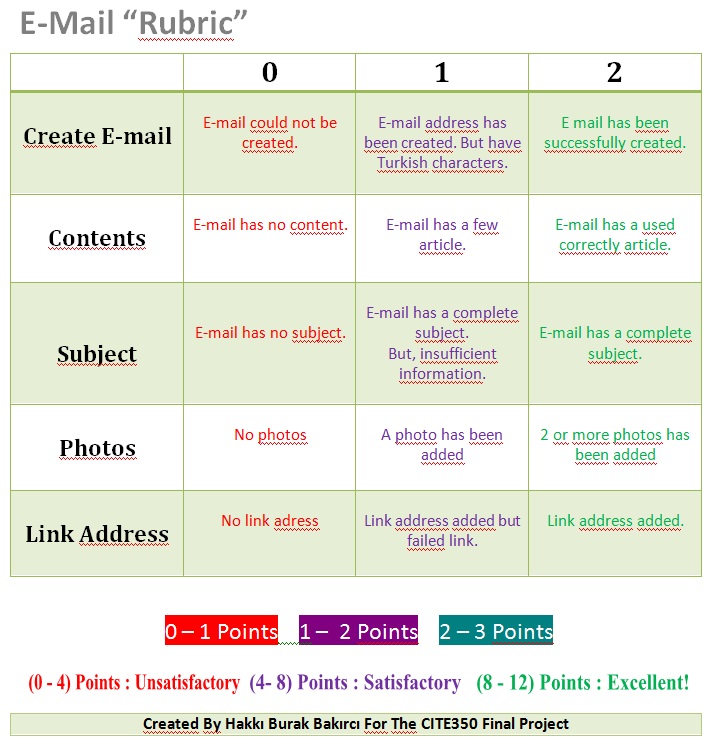
Evaluation
Conclusion
In this lesson we learned "how to create an e-mail". We know as simple as creating e-mail. All the same time, We have seen what we can do. E-mail is one of the official correspondence of the most important tools in our lives. The other course, we will see the usage area of email. I've added a fun video about email. Have a good time! Thank you for attention.
[video:https://www.youtube.com/watch?v=qXlgOX95Q0U align:center]