Introduction
.jpg)
Microsoft Excel is a spreadsheet developed by Microsoft for Windows, Mac OS X, Android and IOS. It features calculation, graphing tools, pivot tables, and a macro programming language called Visual Basic for Applications. It has been a very widely applied spreadsheet for these platforms, especially since version 5 in 1993, and it has replaced Lotus 1-2-3 as the industry standard for spreadsheets. Excel forms part of Microsoft Office.

Task

Students are going to use formulas and they calculate some numbers. There are two way to calculate them,
- Frist way, Manuel Writing: Which is on first picture start with "=" and selecting numbers.
- Secondy way, Automatic Formulas: Which on second picture using these method you can calculate everything with ready to user formulas.
Process
Step 1 : Get Office software.(https://www.microsoft.com/tr-tr/download/details.aspx?id=39647)
Step 2 : Accept you start your computer after installation , read the agreement only after finish the installation by clicking the forward button .
[video:https://www.youtube.com/watch?v=hu_dwV8RctI width:500 height:500 align:center]
Step 3 : After you restart your computer, start - programs - Microsoft Office - Microsoft Office Excel Open a new file. Now you have an area where you can type text occurred.
Step 4 : In this step, the button on the toolbar to try to benefit from the various menu functions. For example :you can find this button on the Home tab in the Editing group and on the Formulas tab in theFunction Library group.
[video:https://www.youtube.com/watch?v=RgvdCHjOKYg width:500 height:500 align:center]
Step 5 : The first thing that you have to know is that all formula entries start with an equal sign (=). For simple formulas, you type the equal sign followed by the numeric values that you want to calculate and the math operators that you want to use — for example the plus sign (+) to add, the minus sign (-) to subtract, the asterisk (*) to multiply, and the forward slash (/) to divide the values that you enter. When you press ENTER, Excel instantly calculates and displays the result of the formula.
For example, when you type a simple formula in a cell ( for example, =12.99+16.99 in cell C6 in the following picture) and then press ENTER, Excel calculates the result and displays it in that cell. The formula itself appears in the formula bar. The formula that you enter in a cell remains visible in the formula bar, and you can see it whenever that cell is selected
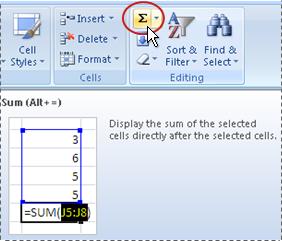
AutoSum is the button that displays the "summation" symbol (the uppercase Sigma of the Greek alphabet). Within easy reach in two locations on the Ribbon, you can find this button on the Home tab in the Editing group and on the Formulas tab in theFunction Library group.
When you select a cell to the right of or below a range of numeric values and then click AutoSum, Excel automatically includes that range in the formula and calculates the values.
To quickly total a series of values without having to enter any of them manually in a formula, you can enter a formula that uses the SUM function, also known as AutoSum.
Useful Links
https://www.youtube.com/watch?v=hu_dwV8RctI
Evaluation
Students will calculate some numbers and they will make a presentation these calculation and they represent it on classroom.
There is also a rubric to mark them ;
- How do they calculate numbers.
- How do they represent their presentations.
- Steps are important when they calculate numbers.
- They have to use four operations on numbers. ( / , - , * , + )
Conclusion
Perfect! Now the calcultaion you want Excel calculator is ready. You did a great job, you've at least imagination. Congratulations!