
Introduction
Our principal Mrs. Jones was searching through the World Wide Web and came across some unsafe behaviours that she had no idea how to solve. Mrs. Jones has not had much experience with technology and thinks she needs some guidance from the technology users of 5/6AG.
Your job is to find out what unsafe behaviours Mrs. Jones may have come across and provide her information on how to be safe online.
You must be quick as Mrs. Jones may have just encountered a scam!
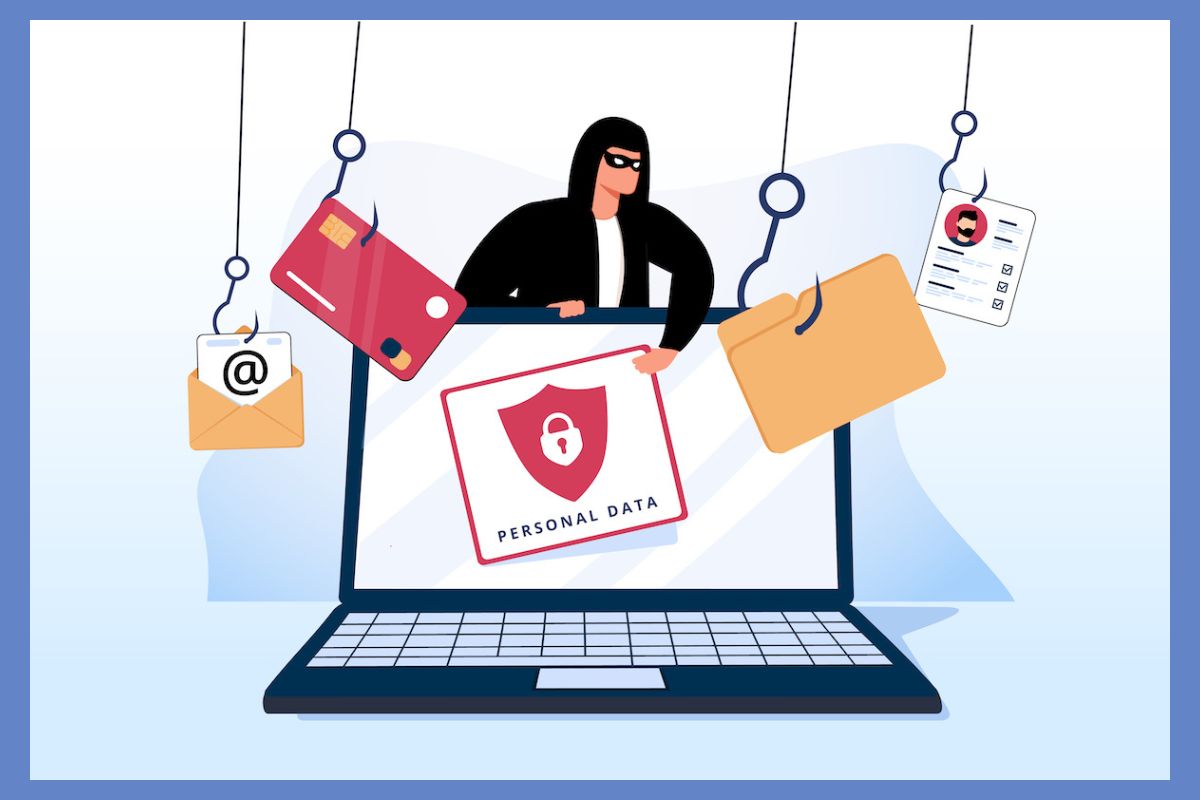
Source: Google Images
Task
You will go on an adventure through the internet and understand a range of different unsafe online behaviours. You will need the following in order to participate in this activity:
-
Your device to be more than 50% charged
-
Make sure you have an internet connection
-
Have headphones or earplugs plugged into your computer
-
Have your google accounts login readily available
Once you have these things ready to go, please read the following instructions that outline the task you have been given:
-
Please ensure that you read, watch and interact with the content provided and in the ORDER that is displayed
-
Jot down a couple notes for each new section of information. This can be done in your workbooks or on a google document depending on which you would prefer
-
Once you have engaged in all of the content, you will need to create a multimodal presentation with the following information
-
What is e-safety?
-
A brief outline of each unsafe behaviour
-
Cyberbullying
-
Inappropriate content
-
Digital Footprint
-
Personal Accounts & Passwords
-
-
Steps we can take to be safe online
-
What do you do if you see something unsafe online?
-
How would you teach others to be safe online?
-
-
You will then present this information to the class and Mrs. Jones so that she knows how to be safe online
If you are stuck on what to do for your multimodal presentation, here are some possible options:
-
Powerpoint presentation
-
Canva slideshow
-
Ted Talk
-
Create your own video
-
Interactive website
-
Performance
Process
During this section you will read information, watch videos and interact with different websites and games that will teach you what online safety is, the elements to online safety and how to be safe online. Don’t forget that we need to help Mrs. Jones so make sure you read and listen carefully!
1. What is E-Safety?

Source: Internet Matters
Please read the following website and stop once you have read the first section of dot points.
https://dwryfelinschool.org/esafety/

The E-Safety Commission
The E-Safety Commission is Australia's national and independent statutory office that regulates and mandates online safety. The E-Safety Commissioner educates many people on online safety risks and how to avoid these risks. E-Safety encourages technology companies to detect and eliminate online risks to create an inclusive and safe online network. The E-Safety commissioner has a range of online resources available which you will see throughout this unit (eSafety Commissioner, 2021).
Use the link to look at what the E-Safety Commission has to offer!
2. What are some unsafe online behaviours? How do we help/avoid these unsafe behaviours?
Cyberbullying
Please read the following article that discusses what cyberbullying is, the consequences for it, why people do it and what we can do about cyberbullying. If you are an audio learner, there is an option to listen to the article instead.
The following video discusses the ways we can do something about cyberbullying and how it can often be difficult to stand up for someone online. Please watch the following video.
Source: eSafety Commission
If you are a victim to cyberbullying, please know that you can speak to any trusted adult and report this. If cyberbullying is affecting your mental health then please make sure you speak to one of these trusted adults OR you can use one of the following online support services.
https://kidshelpline.com.au/kids
There are many ways we can put a stop to online bullying. It may be hard to do but remember that it is worse to be a bystander so please inform a trusted adult when you see online bullying. Here are a list of possible trusted adults:
- Parents
- Grandparents
- Auntie/Uncle
- Teacher
- School counsellor
- Doctor
- Police
- Family friend
- Sporting coach
- Community Elder
ACTIVITY 1
You will need:
1x A4 paper
1x pencil
Place your hand on your piece of paper and trace around your hand with your pencil. For each finger you will write someone who is a trusted adult for you. This picture can be used so you can remember who you can go to when you have any type of issue. Here is an example of mine below:
After completing the cyberbullying tasks, you may have a go at playing Interland and select the option 'Kind Kingdom'.
https://beinternetawesome.withgoogle.com/en_us/interland
Inappropriate content
Please read the section 'Facts and Stats' and 'App features that increase the risk' in the following document.
https://www.esafety.gov.au/sites/default/files/2020-04/Inappropriate%20content%20Factsheet_0.pdf
Watch the following video that shows high school students perspective on inappropriate content.
Source: Youtube
Please read the section 'Where do children see adult content?' from the following website.
As you may be able to tell from the above website, the more that you are online, the higher the risk is of coming across inappropriate content. Whilst this can be quite difficult to avoid, you can set up specific settings on your devices that aim to protect you from seeing inappropriate content. It is important to know that even with these settings, there is still the possibility of coming across inappropriate content but it is even more important to Report first then BLOCK! The final module will show one of the processes for reporting content but below is an example of how you can block something.
Digital Footprint
Watch the following video that talks about what a digital footprint is.
Source: Youtube
Please read the 'key message' and 'why is your digital footprint so important?' in the following document.
Activity
Open up your preferred search engine (e.g. google, bing etc.). You will then need to search your full name online. Notice if anything comes up about you and whether these things that are on the internet are appropriate.
Now read the section 'how to manage your digital footprint' from the following page.
https://www.esafety.gov.au/young-people/digital-footprint
Watch the following video 'Dumb Stuff' which is a short clip showing what can happen when you post silly stuff online.
WARNING: This video contains inappropriate language. If this is something you don't want to see, you can choose not to watch the video.
Once you have completed the above activities, you can now have a turn of playing the 'Share with Care' game on interland.
https://beinternetawesome.withgoogle.com/en_us/interland
Personal Accounts & Passwords
Before learning about the possible dangers of personal accounts and passwords, lets have a look at what these actually are. Please watch the following video.
Source: Youtube
Did you know that some people will try to create fake accounts online using your name?
If you find another account online using your name and is pretending to be you, you should report this immediately through the platform you are on. This is identity theft and is a CRIME.
Watch the following video about why it is important to protect your online accounts.
Source: Youtube
Read the following document on some really great tips on how to create safe passwords, things to avoid and the use of a password manager.
https://edu.gcfglobal.org/en/internetsafety/creating-strong-passwords/1/
Now that you have completed these tasks, you will use the following link to have a go at using an online password generator. I want you to think about the following things:
- Is this a secure way of creating passwords?
- Are random letters, numbers and symbols a strong password?
- How could we make our weak passwords stronger using a password generator?
3. What are some steps to take to be safe online?
The following two videos outline some tips for how you can stay safe and act safe online. Please listen carefully to the videos as this could help you and Mrs. Jones out!
Source: eSafety Commissioner
Source: Youtube
4. What can you do if you see something unsafe online?
If you are in immediate danger with content you are viewing online, please call '000'.
There are many things that can be reported online by either reporting straight through the online site or by making a report to the E-Safety Commissioner. Please read the following document of what you can report online. When you scroll down you will notice there are red 'report now' buttons which is where you go through the process of reporting based on the unsafe behaviour.
https://www.esafety.gov.au/report/what-you-can-report-to-esafety
We will be completing a report together as a class but it might be worthwhile having a look at the format of a report beforehand.
Evaluation
Congratulations! You have now viewed all the information you need to report back to Mrs. Jones and your class.
As outlined earlier, your task is to now create a multimodal presentation that shows your understanding of E-Safety. We want to make sure that we can helps Mrs. Jones with her online safety issues so please provide as much information as you can on the following:
-
What is e-safety?
-
A brief outline of each unsafe behaviour
-
Cyberbullying
-
Inappropriate content
-
Digital Footprint
-
Personal Accounts & Passwords
-
Scams
-
-
Steps we can take to be safe online
-
What do you do if you see something unsafe online?
-
How would you teach others to be safe online?
Conclusion
Thank you for participating in this web quest. Please check the credits section for all resources used throughout this web quest.
Credits
All of the content that has been used throughout this web quest has been referenced below using APA 7th edition formatting
References
AMAZE Org. (2017). Being Safe on the Internet [YouTube Video]. In YouTube. https://www.youtube.com/watch?v=HxySrSbSY7o
Australian Government. (2021). Digital footprint | eSafety Commissioner. ESafety Commissioner. https://www.esafety.gov.au/young-people/digital-footprint
Australian Government . (2015). eSafety Homepage. Office of the ESafety Commissioner. https://www.esafety.gov.au
Ben-Joseph, E. P. (2022, August). Cyberbullying (for Teens) - Nemours KidsHealth. Kidshealth.org. https://kidshealth.org/en/teens/cyberbullying.html#:~:text=Cyberbullyin…
Dwryfelin School . (2016, February 1). e-Safety. Dwryfelinschool.org. https://dwryfelinschool.org/esafety/
eSafety Commissioner. (2021). An overview of eSafety’s role and functions. https://www.esafety.gov.au/sites/default/files/2021-07/Overview%20of%20…
eSafety Commissioner. (2023a). Inappropriate content: factsheet Key points. https://www.esafety.gov.au/sites/default/files/2020-04/Inappropriate%20…
eSafety Commissioner. (2023b, October 5). What you can report to eSafety. ESafety Commissioner. https://www.esafety.gov.au/report/what-you-can-report-to-esafety
GCF Global. (2016). Internet Safety: Creating Strong Passwords. GCFGlobal.org; GCF Global. https://edu.gcfglobal.org/en/internetsafety/creating-strong-passwords/1/
Google. (2000). Interland. Interland. https://beinternetawesome.withgoogle.com/en_us/interland
Hamilton County Schools. (2023). Real Talk. Real Students. - Inappropriate Material. Www.youtube.com. https://www.youtube.com/watch?v=R8OIQ8mfjr0
Headspace. (2019). headspace National Youth Mental Health Foundation. Headspace.org.au. https://headspace.org.au
InternetMatters. (n.d.). What is inappropriate content? Internet Matters. https://www.internetmatters.org/issues/inappropriate-content/learn-abou…
Kids Helpline. (2019, February 3). Kids. Kids Helpline. https://kidshelpline.com.au/kids
LastPass. (n.d.). Password Generator - LastPass. Www.lastpass.com. Retrieved March 19, 2024, from https://www.lastpass.com/features/password-generator?utm_source=google&…
LearningMole. (2022). What is a digital footprint | Online Safety for Kids | Digital Footprint for Kids | Online Safety. Www.youtube.com. https://youtu.be/tiUYMcPAI84
Meredith, N. (2020). What is a Username, Password & Email Address | Technology Basics for Kids. Www.youtube.com. https://www.youtube.com/watch?v=4ZlR0ygbVQE
NSW Department of Education. (2019). Leaving a digital footprint. Www.digitalcitizenship.nsw.edu.au. https://www.digitalcitizenship.nsw.edu.au/articles/leaving-a-digital-fo…
Office, eSafety. (2016, May 29). Protecting each other online. Vimeo. https://vimeo.com/168581194
Office, eSafety. (2018). Act eSafe - Primary education resource. In Vimeo. https://vimeo.com/262150643
Office, eSafety. (2021, November 15). Video: Dumb Stuff. Vimeo. https://vimeo.com/646242334
Planet Nutshell. (2014). NetSafe Episode 11: Protect Your Personal Information (Grades 7-12). In YouTube. https://www.youtube.com/watch?v=RQqX5b5HWmY